JSONL Tools & Utilities
Master the complete toolkit for working with JSON Lines data - from command-line utilities to IDE extensions, validators, converters, and more.


Which JSONL Tool for Which Job
There is no single best JSONL tool. The right one depends on the size of the file and on what you want out of it. Start here, then jump to the section that covers your pick.
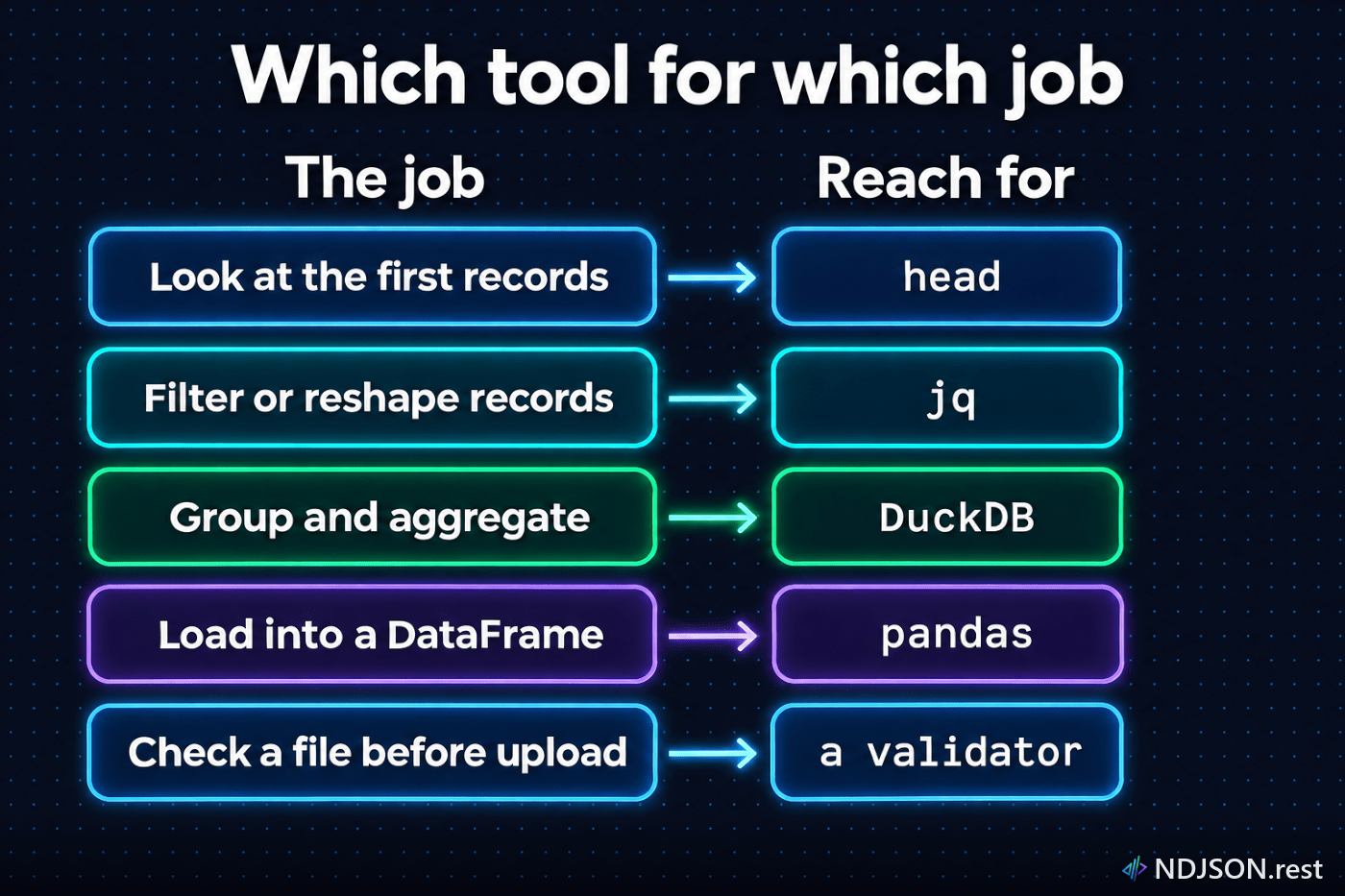
| You want to | Reach for | Why | Section |
|---|---|---|---|
| Peek at a file you just received | head, wc -l, jless | Instant, no parsing, works at any size | CLI tools |
| Filter records or pull out fields | jq | Understands JSON structure, streams line by line | jq |
| Find lines containing a string, fast | grep or rg | No JSON parsing at all, so it is the fastest pre-filter | More CLI |
| Count, group, join or sort | DuckDB | Real SQL on the file in place, uses every core | SQL engines |
| Explore and chart in a notebook | pandas or Polars | DataFrame API; Polars can scan lazily without loading the file | Python |
| Turn JSONL into CSV for a spreadsheet | Miller or jq @csv | Miller handles headers and missing keys for you | Converters |
| Check a file before uploading it | A validator | Reports every bad line by number instead of stopping at the first | Validators |
| Process a stream inside a service | Your language's line reader | No extra dependency; read a line, parse it, handle it | Node.js |
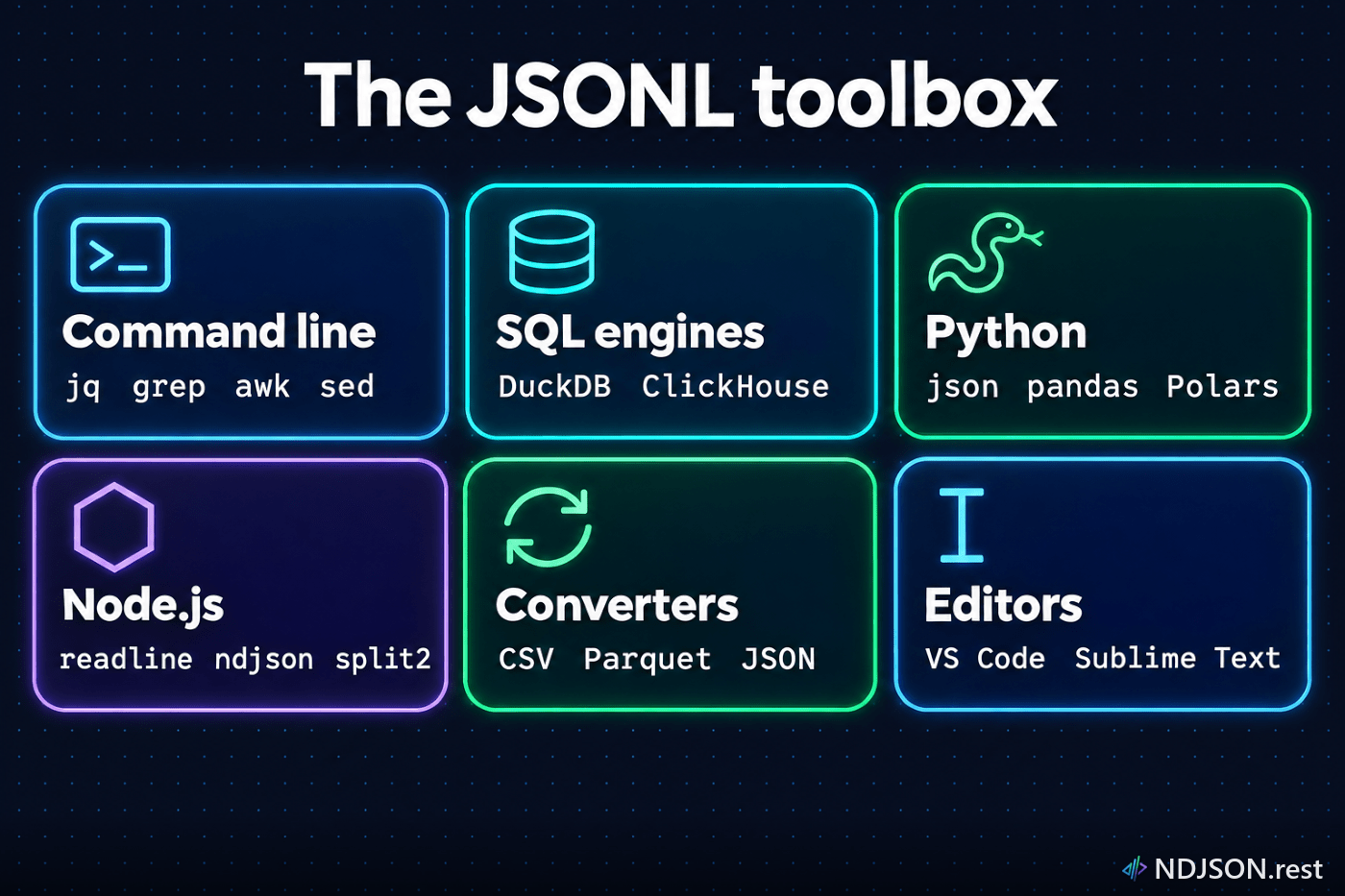
Under about 100 MB
Anything works. Use whatever you already know. Loading the whole file into pandas or a text editor is fine.
100 MB to a few GB
Stream it. jq, grep, DuckDB and line-by-line readers never hold the whole file, so memory stays flat.
Bigger than that
Split on newlines and work in parallel, or convert once to Parquet and query that. See JSONL vs Parquet.
jq - The Swiss Army Knife for JSONL
jq is the most powerful command-line JSON processor, perfect for JSONL data manipulation, filtering, and transformation.
Basic jq Usage with JSONL
jq processes each line of JSONL independently, making it ideal for streaming large datasets.
Pretty Print Each Line
cat data.jsonl | jq '.'Extract Specific Field
cat users.jsonl | jq '.email'Output: One email per line
Filter by Condition
cat users.jsonl | jq 'select(.age > 21)'Returns only records where age is greater than 21
Compact Output
cat data.jsonl | jq -c '.'Ensures each JSON object is on a single line (JSONL format)
Advanced jq Queries
Transform Objects
cat users.jsonl | jq '{name: .name, email: .email, active: (.status == "active")}'Create new objects with selected and computed fields
Array Operations
cat orders.jsonl | jq '.items | length'Count items in an array field
Nested Field Access
cat data.jsonl | jq '.user.profile.avatar_url'Access deeply nested fields with dot notation
Multiple Filters
cat events.jsonl | jq 'select(.type == "purchase" and .amount > 100)'Combine multiple conditions with and/or
String Manipulation
cat users.jsonl | jq '.email | split("@") | .[1]'Extract domain from email addresses
Date Formatting
cat events.jsonl | jq '.timestamp | strftime("%Y-%m-%d")'Convert Unix timestamps to readable dates
Aggregation with jq Slurp Mode
Use -s or --slurp to read entire JSONL file into an array for aggregation.
Count Total Records
cat data.jsonl | jq -s 'length'Sum Values
cat sales.jsonl | jq -s 'map(.amount) | add'Calculate total sales amount
Average Calculation
cat scores.jsonl | jq -s 'map(.score) | add/length'Group By Field
cat events.jsonl | jq -s 'group_by(.category) | map({category: .[0].category, count: length})'Count events by category
Find Maximum
cat data.jsonl | jq -s 'max_by(.value)'jq Best Practices for JSONL
-
Always use
-cflag for compact output when generating JSONL - Process line-by-line for large files to avoid memory issues
-
Use
select()early in pipeline to reduce data volume - Test queries on small sample before running on full dataset
-
Use
--slurponly when aggregation is necessary
Command Line Tools for JSONL
Unix command-line utilities provide powerful ways to process JSONL files efficiently.
grep - Search JSONL Files
Find Lines Containing Text
grep "error" logs.jsonlReturn all lines containing "error"
Case-Insensitive Search
grep -i "warning" logs.jsonlCount Matching Lines
grep -c "status.*active" users.jsonlInvert Match (Exclude Lines)
grep -v "test" data.jsonl > production.jsonlRemove all lines containing "test"
Regular Expression Search
grep -E '"age":\s*[5-9][0-9]' users.jsonlFind users with age 50-99
awk - Pattern Processing
Print Specific Lines
awk 'NR >= 10 && NR <= 20' data.jsonlPrint lines 10 through 20
Filter by Line Length
awk 'length($0) < 1000' data.jsonlKeep only lines shorter than 1000 characters
Sample Every Nth Line
awk 'NR % 10 == 0' data.jsonlTake every 10th line (10% sample)
Add Line Numbers
awk '{print NR": "$0}' data.jsonlsed - Stream Editor
Replace Text in Place
sed 's/"status":"pending"/"status":"active"/g' data.jsonlDelete Specific Lines
sed '/test_user/d' users.jsonlRemove lines containing "test_user"
Extract Range of Lines
sed -n '100,200p' data.jsonlStandard Unix Tools
head - First N Lines
head -n 100 data.jsonltail - Last N Lines
tail -n 100 data.jsonlwc - Count Lines
wc -l data.jsonlsort - Sort Lines
sort data.jsonl > sorted.jsonlAlphabetically sort JSONL lines
uniq - Remove Duplicates
sort data.jsonl | uniq > unique.jsonlsplit - Divide Large Files
split -l 10000 large.jsonl chunk_Split into files of 10,000 lines each

More Command-Line Tools Worth Installing
jq and the classic Unix tools cover most jobs. These newer tools each do one thing with JSONL better than anything above.
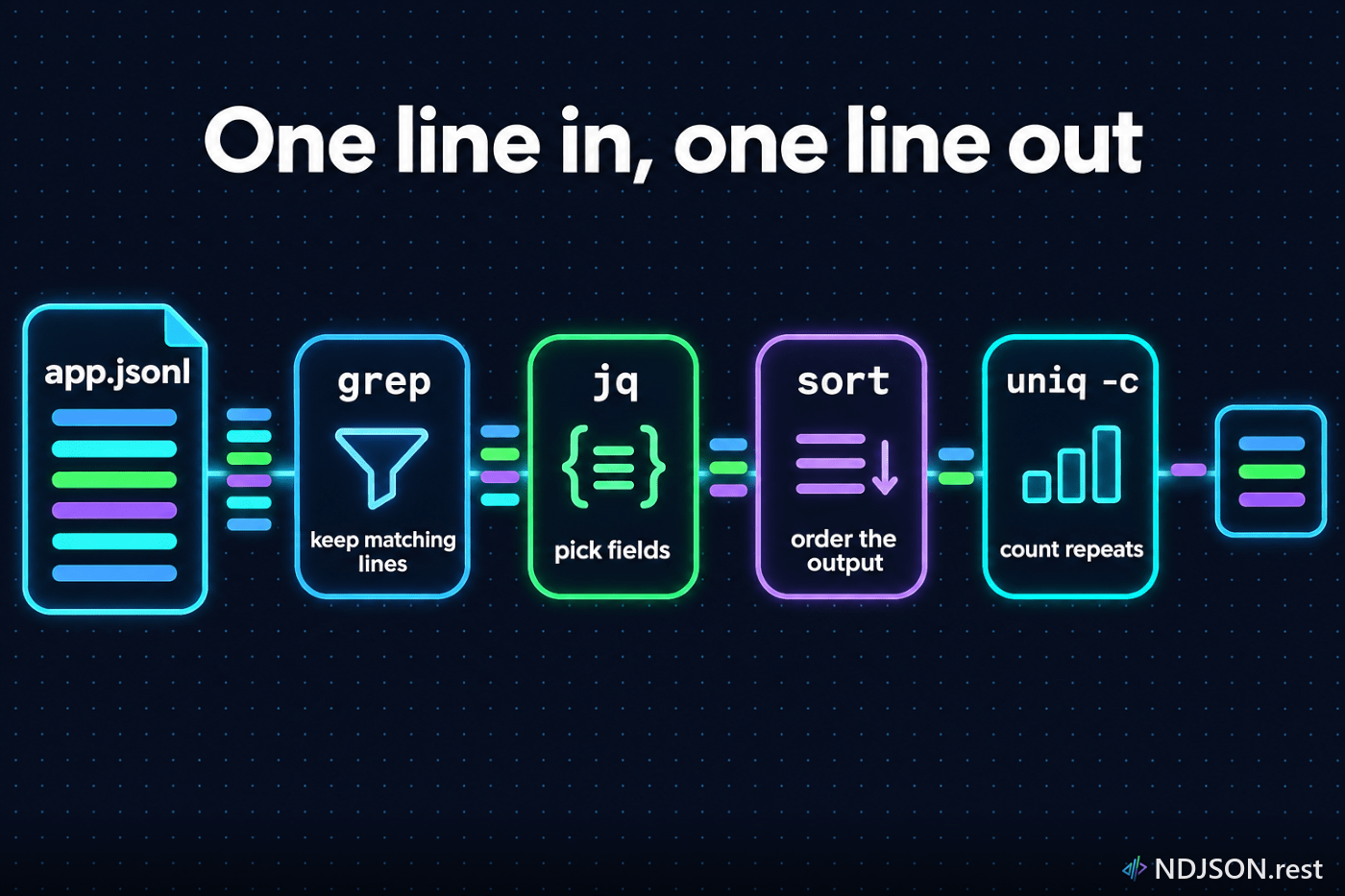
# The pipeline in the diagram: which services log the most errors?
grep '"level":"error"' app.jsonl | jq -r '.service' | sort | uniq -c | sort -rn
Miller (mlr) - awk for records
Miller treats each line as a record with named fields and reads JSONL natively with --ijsonl. It is the easiest way to get a clean CSV or an aligned table out of a JSONL file, and it copes with records that are missing keys.
# JSONL to CSV, header row included
mlr --ijsonl --ocsv cat users.jsonl > users.csv

# First 5 records as an aligned table
mlr --ijsonl --opprint head -n 5 users.jsonl

# Count records per level
mlr --ijsonl --opprint count-distinct -f level app.jsonl
ripgrep (rg) - the fast pre-filter
ripgrep does not parse JSON, which is exactly why it is fast. Use it to throw away most of a large file before a JSON-aware tool sees it. It also searches compressed files with -z.
# Narrow first, parse second
rg '"trace_id":"9b21ef44c7a0d316"' app.jsonl | jq .

# Count matching records
rg -c '"level":"error"' app.jsonl

# Search a gzip file directly
rg -z 'payment gateway' app.jsonl.gz
jless and fx - interactive viewers
Terminal viewers that let you scroll, fold and search JSON with the keyboard. Both accept a file of newline-delimited records, so they are a comfortable way to read wide records that wrap badly in less.
jless events.jsonl

fx events.jsonl

# Look at a sample of a big file
head -n 200 big.jsonl | jless
gron - make JSON greppable
gron flattens each record into one assignment per value, so you can discover the path to a deeply nested field with plain grep. The --stream flag reads one JSON value per line.
# Where does "country" live in these records?
head -n 1 orders.jsonl | gron --stream | grep country

# json[0].customer.address.country = "CA";
GNU parallel - use every core
Because records never span lines, a JSONL file can be cut at any newline and the pieces processed independently. --pipepart does the cutting without reading the file first, and -k keeps the output in the original order.
# Run jq on 100 MB blocks, one per CPU core
parallel -k --pipepart -a big.jsonl --block 100M \
  "jq -r '.user_id'" > user_ids.txt
gzip and zstd - compress without losing streaming
JSONL repeats every key on every line, so it compresses very well. Both formats decompress as a stream, which means you can still read the first records of a huge file without unpacking it.
# Compress, keeping the original
gzip -k data.jsonl          # writes data.jsonl.gz
zstd -T0 data.jsonl         # writes data.jsonl.zst, all cores

# Read without unpacking to disk
zcat data.jsonl.gz | head -n 5
zstdcat data.jsonl.zst | jq -c 'select(.status == "active")'
JSONL Validators
Ensure your JSONL files are properly formatted and valid before processing.
Command Line Validation
jq Validation
cat data.jsonl | jq -e . > /dev/null && echo "Valid JSONL" || echo "Invalid JSONL"Exit code 0 if all lines are valid JSON
Line-by-Line Validation
awk '{if (system("echo '\''" $0 "'\'' | jq . > /dev/null 2>&1") != 0) print "Invalid JSON on line", NR}' data.jsonlPython json.tool
while IFS= read -r line; do echo "$line" | python3 -m json.tool > /dev/null || echo "Error on line $line"; done < data.jsonlPython Validation Script
import json
import sys

def validate_jsonl(filepath):
    errors = []
    with open(filepath, 'r', encoding='utf-8') as f:
        for line_num, line in enumerate(f, 1):
            line = line.strip()
            if not line:
                continue
            try:
                json.loads(line)
            except json.JSONDecodeError as e:
                errors.append(f"Line {line_num}: {e.msg}")

    if errors:
        print(f"Found {len(errors)} errors:")
        for error in errors:
            print(error)
        return False
    else:
        print("Valid JSONL file!")
        return True

if __name__ == "__main__":
    if len(sys.argv) != 2:
        print("Usage: python validate_jsonl.py <file.jsonl>")
        sys.exit(1)

    is_valid = validate_jsonl(sys.argv[1])
    sys.exit(0 if is_valid else 1)
Node.js Validation Script
const fs = require('fs');
const readline = require('readline');

async function validateJSONL(filepath) {
    const fileStream = fs.createReadStream(filepath);
    const rl = readline.createInterface({
        input: fileStream,
        crlfDelay: Infinity
    });

    let lineNum = 0;
    let errors = [];

    for await (const line of rl) {
        lineNum++;
        if (!line.trim()) continue;

        try {
            JSON.parse(line);
        } catch (e) {
            errors.push(`Line ${lineNum}: ${e.message}`);
        }
    }

    if (errors.length > 0) {
        console.log(`Found ${errors.length} errors:`);
        errors.forEach(err => console.log(err));
        process.exit(1);
    } else {
        console.log('Valid JSONL file!');
        process.exit(0);
    }
}

const filepath = process.argv[2];
if (!filepath) {
    console.log('Usage: node validate-jsonl.js <file.jsonl>');
    process.exit(1);
}

validateJSONL(filepath);
Schema Validation
Validate JSONL against a JSON Schema to ensure data structure compliance.
Python with jsonschema
import json
from jsonschema import validate, ValidationError

schema = {
    "type": "object",
    "properties": {
        "id": {"type": "number"},
        "name": {"type": "string"},
        "email": {"type": "string", "format": "email"}
    },
    "required": ["id", "name"]
}

with open('data.jsonl', 'r') as f:
    for line_num, line in enumerate(f, 1):
        try:
            obj = json.loads(line)
            validate(instance=obj, schema=schema)
        except ValidationError as e:
            print(f"Line {line_num}: Schema validation failed - {e.message}")
Format Converters
Convert between JSONL and other popular data formats seamlessly. For the full matrix - CSV, Parquet, Excel, SQL and YAML in both directions, with the lossiness of each - see the conversion guide.
JSON Array to JSONL
Using jq
jq -c '.[]' data.json > data.jsonlConverts JSON array to JSONL format
Python Script
import json

with open('data.json', 'r') as fin, open('data.jsonl', 'w') as fout:
    data = json.load(fin)
    for item in data:
        fout.write(json.dumps(item) + '\n')
JSONL to JSON Array
Using jq
jq -s '.' data.jsonl > data.jsonPython Script
import json

items = []
with open('data.jsonl', 'r') as f:
    for line in f:
        items.append(json.loads(line))

with open('data.json', 'w') as f:
    json.dump(items, f, indent=2)
CSV to JSONL
Python with csv module
import csv
import json

with open('data.csv', 'r') as fin, open('data.jsonl', 'w') as fout:
    reader = csv.DictReader(fin)
    for row in reader:
        fout.write(json.dumps(row) + '\n')
Using pandas
import pandas as pd

df = pd.read_csv('data.csv')
df.to_json('data.jsonl', orient='records', lines=True)
JSONL to CSV
Using jq and csv
jq -r '[.name, .email, .age] | @csv' data.jsonl > data.csvPython Script
import json
import csv

# Read all records to get all possible fields
records = []
with open('data.jsonl', 'r') as f:
    for line in f:
        records.append(json.loads(line))

# Get all unique keys
all_keys = set()
for record in records:
    all_keys.update(record.keys())

# Write CSV
with open('data.csv', 'w', newline='') as f:
    writer = csv.DictWriter(f, fieldnames=sorted(all_keys))
    writer.writeheader()
    writer.writerows(records)
Using pandas
import pandas as pd

df = pd.read_json('data.jsonl', lines=True)
df.to_csv('data.csv', index=False)
XML to JSONL
import xml.etree.ElementTree as ET
import json

tree = ET.parse('data.xml')
root = tree.getroot()

with open('data.jsonl', 'w') as f:
    for item in root.findall('.//item'):
        obj = {child.tag: child.text for child in item}
        f.write(json.dumps(obj) + '\n')
Parquet to JSONL
import pandas as pd

df = pd.read_parquet('data.parquet')
df.to_json('data.jsonl', orient='records', lines=True)
SQL Engines and DataFrames for JSONL
When the question is "how many", "which are the top ten" or "join these two files", SQL is shorter than any jq program. These engines query a JSONL file where it sits. There is no import step and no server to run.
DuckDB - SQL directly on the file
DuckDB is a single binary with no setup. It samples the file to work out column names and types, reads it on all cores, and handles gzip-compressed files and wildcards. Nested objects become structs you can reach into with dot notation.
-- Errors per service, straight from the file
SELECT service, count(*) AS errors
FROM read_json_auto('app.jsonl')
WHERE level = 'error'
GROUP BY service
ORDER BY errors DESC;

-- Many files at once, compressed or not
SELECT count(*) FROM read_json_auto('logs/2026-07-*.jsonl.gz');

-- Convert to Parquet in one statement
COPY (SELECT * FROM read_json_auto('events.jsonl'))
  TO 'events.parquet' (FORMAT PARQUET);

-- Write query results back out as JSONL
COPY (SELECT user_id, plan FROM read_json_auto('users.jsonl') WHERE seats > 10)
  TO 'big_accounts.jsonl' (FORMAT JSON);
From a shell, wrap any of these in duckdb -c "..." to use it in a script.
ClickHouse local
ClickHouse calls the format JSONEachRow. clickhouse local runs the full engine against local files with no server, and is hard to beat on very large inputs.
clickhouse local -q "
  SELECT level, count() AS n
  FROM file('app.jsonl', JSONEachRow)
  GROUP BY level
  ORDER BY n DESC"
Polars - lazy DataFrames
Polars names the format NDJSON. scan_ndjson builds a lazy query, so filters and column selections are applied while the file is read and only the rows you keep reach memory.
import polars as pl

errors = (
    pl.scan_ndjson("app.jsonl")
      .filter(pl.col("level") == "error")
      .select("ts", "service", "msg")
      .collect()
)
errors.write_ndjson("errors.jsonl")
BigQuery
BigQuery loads and exports "newline delimited JSON". Nested objects become RECORD columns and arrays become REPEATED columns.
bq load --source_format=NEWLINE_DELIMITED_JSON \
  --autodetect shop.orders gs://my-bucket/orders-*.jsonl

bq extract --destination_format=NEWLINE_DELIMITED_JSON \
  shop.orders gs://my-bucket/export/orders-*.jsonl
Apache Spark
Spark's JSON reader expects JSON Lines by default: one record per line, so a file can be split across executors. A pretty-printed JSON document needs the multiLine option and cannot be split.
df = spark.read.json("s3://my-bucket/logs/*.jsonl")
df.groupBy("level").count().show()

# Each output part file is JSONL
df.write.mode("overwrite").json("s3://my-bucket/out/")
Amazon Athena, Snowflake and most other warehouses read JSONL from object storage the same way: one JSON object per line. The analytics pipelines guide covers loading patterns in more depth.
Python Tools for JSONL
Leverage Python's rich ecosystem for powerful JSONL processing.
Standard Library - json module
Read JSONL File
import json

with open('data.jsonl', 'r') as f:
    for line in f:
        obj = json.loads(line)
        print(obj)
Write JSONL File
import json

data = [
    {"id": 1, "name": "Alice"},
    {"id": 2, "name": "Bob"}
]

with open('output.jsonl', 'w') as f:
    for item in data:
        f.write(json.dumps(item) + '\n')
Stream Processing
import json

def process_large_jsonl(filepath):
    with open(filepath, 'r') as f:
        for line in f:
            obj = json.loads(line)
            # Process each object without loading entire file
            yield obj

for item in process_large_jsonl('large_data.jsonl'):
    # Process item
    pass
pandas - Data Analysis
Read JSONL into DataFrame
import pandas as pd

df = pd.read_json('data.jsonl', lines=True)
Write DataFrame to JSONL
import pandas as pd

df.to_json('output.jsonl', orient='records', lines=True)
Chunked Reading for Large Files
import pandas as pd

chunk_size = 10000
for chunk in pd.read_json('large.jsonl', lines=True, chunksize=chunk_size):
    # Process each chunk
    print(f"Processing {len(chunk)} records")
    # Your processing logic here
jsonlines Library
Dedicated library for JSONL with clean API. Install: pip install jsonlines
Read JSONL
import jsonlines

with jsonlines.open('data.jsonl') as reader:
    for obj in reader:
        print(obj)
Write JSONL
import jsonlines

data = [{"id": 1}, {"id": 2}]

with jsonlines.open('output.jsonl', mode='w') as writer:
    writer.write_all(data)
Append to JSONL
import jsonlines

with jsonlines.open('data.jsonl', mode='a') as writer:
    writer.write({"id": 3, "name": "Charlie"})
Node.js Tools for JSONL
Process JSONL efficiently in JavaScript and Node.js environments.
Node.js Built-in Modules
Read JSONL with readline
const fs = require('fs');
const readline = require('readline');

const rl = readline.createInterface({
    input: fs.createReadStream('data.jsonl'),
    crlfDelay: Infinity
});

rl.on('line', (line) => {
    const obj = JSON.parse(line);
    console.log(obj);
});
Write JSONL
const fs = require('fs');

const data = [
    {id: 1, name: 'Alice'},
    {id: 2, name: 'Bob'}
];

const stream = fs.createWriteStream('output.jsonl');
data.forEach(item => {
    stream.write(JSON.stringify(item) + '\n');
});
stream.end();
Async Iterator (all supported Node.js releases)
const fs = require('fs');
const readline = require('readline');

async function processLineByLine() {
    const fileStream = fs.createReadStream('data.jsonl');
    const rl = readline.createInterface({
        input: fileStream,
        crlfDelay: Infinity
    });

    for await (const line of rl) {
        const obj = JSON.parse(line);
        // Process obj
    }
}

processLineByLine();
ndjson Package
Streaming JSONL parser. Install: npm install ndjson
Parse Stream
const ndjson = require('ndjson');
const fs = require('fs');

fs.createReadStream('data.jsonl')
    .pipe(ndjson.parse())
    .on('data', obj => {
        console.log(obj);
    });
Stringify to JSONL
const ndjson = require('ndjson');
const fs = require('fs');

const stringify = ndjson.stringify();
stringify.pipe(fs.createWriteStream('output.jsonl'));

stringify.write({id: 1, name: 'Alice'});
stringify.write({id: 2, name: 'Bob'});
stringify.end();
split2 - Line Splitting
Stream-based line splitter. Install: npm install split2
const fs = require('fs');
const split = require('split2');

fs.createReadStream('data.jsonl')
    .pipe(split(JSON.parse))
    .on('data', obj => {
        console.log(obj);
    });
IDE Extensions & Editors
Enhance your development workflow with IDE support for JSONL files.
Visual Studio Code
What You Actually Need
Start with nothing. Current VS Code ships a built-in jsonl language already bound to
.jsonl and .ndjson, so syntax highlighting needs no extension at all. Search the
marketplace by publisher id rather than display name if you want line-level viewing on top of that - several
similarly named JSONL extensions exist and they are not interchangeable. One clarification worth having: Rainbow
CSV is a good tool, but it registers for CSV and TSV only and will not render a .jsonl file as a table.
settings.json Configuration
{
    "[jsonl]": {
        "editor.formatOnSave": false,
        "editor.wordWrap": "off"
    }
}
Leave formatOnSave off: any formatter that pretty-prints a line across multiple lines destroys the format. Prettier does not register for jsonl, so pointing editor.defaultFormatter at it has no effect. A files.associations entry is only needed for files that carry JSONL under another extension, such as .log.
Custom Tasks
{
    "version": "2.0.0",
    "tasks": [
        {
            "label": "Validate JSONL",
            "type": "shell",
            "command": "cat ${file} | jq -e . > /dev/null",
            "problemMatcher": []
        }
    ]
}
Sublime Text
Packages
- Pretty JSON - Format JSON lines individually
Package Control carries no JSONL syntax package worth the install. Use the syntax definition below instead - it is twelve lines and it is yours.
Custom Syntax Definition
Create JSONL.sublime-syntax:
%YAML 1.2
---
name: JSON Lines
file_extensions: [jsonl, ndjson]
scope: source.jsonl

contexts:
  main:
    - include: 'scope:source.json'
IntelliJ IDEA / PyCharm
File Type Association
Built in: the IntelliJ Platform ships a JSON Lines file type already bound to *.jsonl, *.jsonlines, *.ldjson and *.ndjson, so no setup is needed. Do not add those patterns to the plain JSON type under Settings > Editor > File Types - that rebinds the files to single-document JSON and flags every line after the first as an error.
Plugins
- JSON Helper - Enhanced JSON editing
- String Manipulation - escape, unescape, sort and minify JSON selections
Online JSONL Tools
JSONL Formatter Online
Web-based formatter for quick validation and pretty-printing
play.jqlang.org
The official jq playground, maintained by the jq project. Test jq queries in your browser with JSONL input. Formerly hosted at jqplay.org; jq 1.8.0 moved the link in its own documentation.
CSV to JSONL Converter
Browser-based conversion tools for common formats
Best Practices
Do's
- Use streaming processing for large files
- Validate JSONL before processing in production
- Use jq -c flag for compact output
- Test tools on sample data first
- Keep backups before transformation
Don'ts
- Don't load entire JSONL into memory if streaming is possible
- Don't use jq --slurp on multi-GB files
- Don't forget to handle encoding (always use UTF-8)
- Don't ignore validation errors in production pipelines
Ready to Master JSONL Tools?
Explore more resources and examples to become a JSONL expert.